10 Best iPhone Productivity Apps in 2026 That Actually Make You More Productive
Find the right iPhone apps for tasks, notes, focus, and everyday planning, with practical ways to build a smaller, more useful productivity toolkit.
Your iPhone can help you remember a commitment, capture an idea, or make space for focused work. It can also turn a two-minute task into twenty minutes of checking things. The difference is often less about how many apps you have and more about the job you give each one.
This is an editorial shortlist of ten useful options, organized around everyday needs. “Best” means a good fit for a particular job, rather than a universal ranking. We publish Pickle, which appears first; the other selections offer different approaches. This is not a controlled speed test, and a longer feature list does not automatically make an app more useful.
Start with the problem, then choose an app
Before downloading anything, finish this sentence: “I keep losing time because…” If the answer is forgetting small commitments, start with a task list. If the answer is opening social apps between meetings, look at attention and notifications. An elegant notes app will not solve a calendar problem.
Choose one tool for each job. Give it a week of ordinary use before adding another. The point is to make your day easier, including the time spent maintaining the system.
1. Pickle: a place to start with everyday productivity
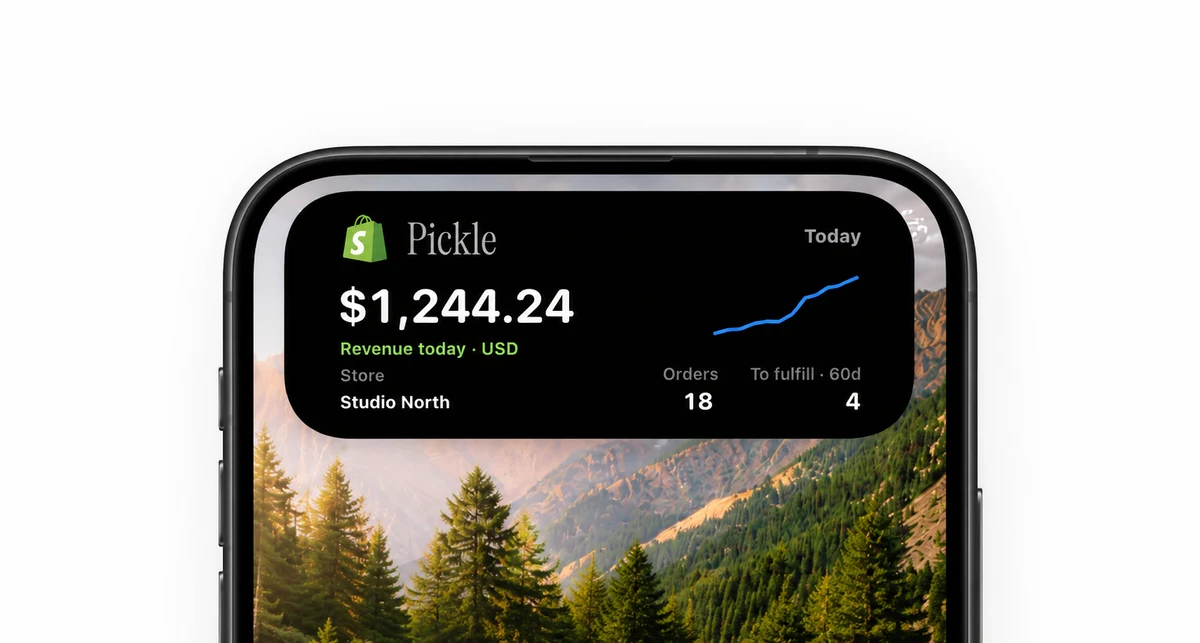
Pickle is our iPhone productivity app. It belongs on this list as an option for people interested in a more considered relationship with their phone. Visit the product page for its current capabilities and availability, then decide whether those capabilities address a real interruption in your day.
Our suggested evaluation is simple: choose one recurring moment when you reach for your phone, and see whether Pickle helps you handle that moment with less effort. Keep the tools that make a difference you can describe.
2. Apple Reminders: everyday commitments
Apple Reminders is a sensible starting point for errands, follow-ups, and personal tasks. An app that is already part of your phone can be easier to adopt than a new system with an elaborate setup.
Start with a single inbox and a short list for today. Write actions you can recognize later: “Send the revised proposal to Maya” is easier to act on than “Proposal.” Add a date when something actually needs to happen, rather than giving every task an artificial deadline.
3. Things: considered personal planning
Things organizes personal tasks and projects with a strong emphasis on day-to-day planning. It is worth considering when you want a dedicated place to decide what deserves your attention today.
Try it with one real project before moving your entire life into it. A useful task manager should help you see the next action without requiring you to redesign your system each morning.
4. Todoist: quick capture and organized tasks
Todoist combines task capture with project organization. Its natural-language Quick Add is useful when the friction of entering a task is what stops you from capturing it.
Choose a small set of projects you understand at a glance. Resist adding labels for every possible situation until you know which distinctions actually help you decide what to do.
5. Apple Notes: a reliable place for loose thoughts
Apple Notes is a practical home for information that is not yet a task: a meeting note, a question, or the beginnings of an idea. The important habit is giving those fragments one predictable destination.
Create a note called “Inbox” and keep it easy to reach. Once a week, move commitments to your task list and keep reference material in notes. Information and obligations benefit from different homes.
6. Bear: a focused writing space
Bear is a Markdown notes app for Apple devices, with tags for organizing writing. It suits people who enjoy working with text and want to move from a rough thought to a longer piece in the same environment.
Use a few broad tags at first. Search and clear titles can do more work than a complex filing system. If organizing a paragraph takes longer than writing it, simplify the structure.
7. Notion: shared project context
Notion brings documents and project information into a shared workspace. Consider it when you need to understand the context around work, rather than simply check off personal tasks.
On a phone, give yourself a clear entry point: the current project page, a meeting note, or a small capture area. A workspace can be powerful without exposing every database every time you open it.
8. Readwise Reader: a deliberate reading queue
Readwise Reader collects reading material, including web articles and PDFs, with highlighting tools. It can help separate finding something interesting from deciding to read it immediately.
Pair saving with a real reading appointment. A queue that grows indefinitely is still an inbox. Pick one or two pieces for the week and archive what is no longer relevant without treating it as unfinished work.
9. Opal: boundaries around distracting apps
Opal offers app restrictions and focus sessions. It is an option when your difficulty is returning to a chosen task after an automatic phone check.
Try one recurring block during a period when you already intend to concentrate. Keep essential communication available. A boundary should support your actual day, including the people who may need to reach you.
10. Streaks: a small recurring habit
Streaks is a habit tracker for repeated actions. It works best when the action is concrete enough to answer a simple question: did I do it today?
Start with something small, such as reading for ten minutes or reviewing tomorrow’s calendar. Choose a frequency you can sustain. A missed day is information about the routine, rather than a reason to abandon it.
Build a toolkit you can explain in one sentence
You do not need all ten. A task list, a place for notes, and a way to protect attention may be enough. Check each app’s current store listing for device requirements, pricing, and features before committing.
After a week, ask what became easier. Did fewer commitments slip? Could you find your notes? Did you spend less time tending the system? Keep the tools that answer those questions well.
Next, put your choices where they are useful with a calmer iPhone Home Screen, and give them a small maintenance routine with a weekly review you will actually do.